Compilers
In order to be able to compile your codes, you need to install a C++ Compiler.
Engine Editor has integrated support for following compilers:
Windows
Microsoft Visual Studio (2017 or newer)
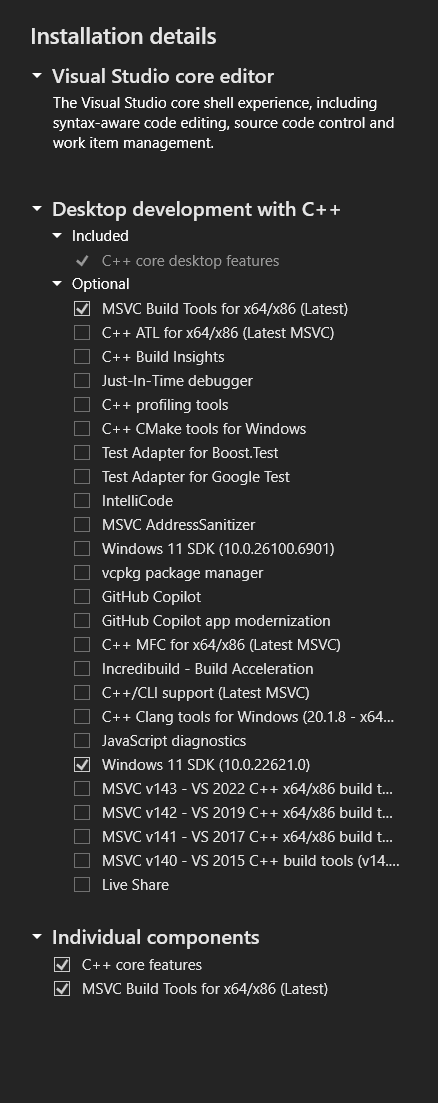
Important: During installation you need to select:
- Desktop development with C++
- C++ core desktop features
- MSVC Build Tools for x64/86 (Latest)
- Windows 11 SDK (latest)
- Individual components
- C++ core features
- MSVC Build Tools for x64/86 (Latest)
Please read here how to speed up Application compile and startup process.
Mac and iOS
Apple Xcode
Linux
Engine requires Clang compiler, please use "sudo apt-get install clang" command to install it.
In order to be able to use debugging features, you have to install NetBeans IDE.
- Download and Open latest NetBeans
- Open Menu "Tools\Plugins"
- Select "Settings" Tab
- Click "Add"
- Set Name = "C++"
- Set URL = "https://updates.netbeans.org/netbeans/updates/8.2/uc/final/distribution/catalog.xml.gz"
- Click "OK"
- Select "Available Plugins" Tab
- Select "C/C++" and Click "Install"
- Close "Plugins" Window
- Open Menu "Tools\Options"
- Select "C/C++" Tab
- Select "Project Options" Sub Tab
- Set Make Options = "-j" to allow Multi-Threaded Compilation
Android
Creating applications for Android is supported from Windows platform.
Java SE Development Kit (JDK)
Android SDK
- Only Command Line Tools are needed
- Run the "sdkmanager" tool from the package:
sdkmanager --sdk_root=[AndroidSDK Path] "ndk;26.3.11579264" "platform-tools" "platforms;android-36"
- If you need more help, please check sdkmanager documentation
- Set Environment Variable ANDROID_SDK_ROOT to AndroidSDK installation path, for example:
ANDROID_SDK_ROOT=C:\Program Files\AndroidSDK
Android Game Development Extension
- Please install AGDE which will add support for Android platform in Visual Studio
Configure Android Device for Development
- Enable "Developer mode" on your Android Device:
- Open "Settings" and go to "About device"
- Tap the "Build number" approximately 7 times until "Developer mode has been enabled" text appears on the screen (this is not a joke)
- New menu "Developer Options" should appear in the Settings
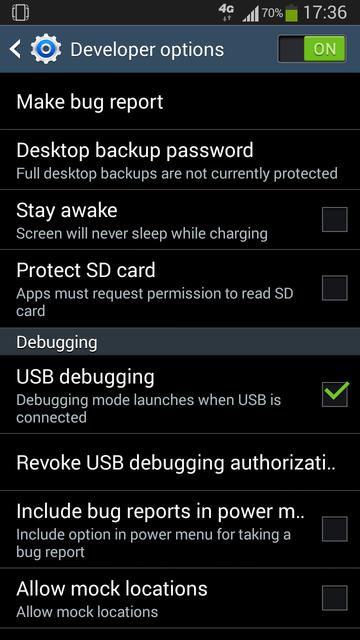
- Go to the "Developer Options", enable it at the top to "ON" state, and check the "USB debugging" option
- Connect your Android Device to the Computer using USB cable
- On Android Device select "Trust this computer for debugging"
- If no message appears or your Device and Computer can't connect, you may need to install a USB driver for your Android Device as described here
Nintendo Switch
Nintendo Switch support is available to Nintendo Registered Developers.
To access Switch support please fill out the form here.
Compilation is supported on Windows and requires installation of Visual Studio (as described above) and Nintendo Dev Interface.
During installation make sure to TURN ON checkbox "add application directory to PATH".
Select Platform "Nintendo Switch", Tool Set "Standard".
Select Most Recent "Nintendo SDK NX Addon" that has "submissions accepted".
In Location "Name" you can enter "SDK" or anything suitable.
In "Configure Environment \ Bundle" you don't need to select any bundles, just click Next.
Web
Creating applications for Web is supported from Windows platform.
- In addition to your existing Visual Studio installation, you need to install Visual C++ 2010 Express (Mirror 1, Mirror 2) as it is required.
- Install VS-Tool to VS 2010.
- Download and install Emscripten, which is a toolchain allowing to convert C++ codes into JavaScript.
Once you have installed Emscripten, you can specify "Web JS" build platform in Engine Editor, and start creating apps for Web.